.png)
Master Your Google Ads Conversion Tracking Setup

Trying to run Google Ads without solid conversion tracking is like driving down a highway with a blindfold on. You're moving, sure, but you have no idea where you're going or what's about to go wrong. A proper google ads conversion tracking setup is the only thing that tells you which ads are actually making you money and which ones are just burning through your budget. It’s the essential link between what you spend and what you get back.
Why Accurate Conversion Tracking Is Your Competitive Edge
Think about it. You could be pouring thousands into a campaign, watching the clicks roll in, and have absolutely no clue if any of those clicks turned into sales, leads, or even a simple phone call. When you’re in that position, you’re just guessing. You can’t tell a winning ad from a dud that's costing you a fortune. That's not just an inconvenience; it's a direct threat to your bottom line.
When your tracking is a mess, you're essentially feeding Google's algorithm garbage data. The system might start optimizing for people who love to browse but never buy, or for leads that are completely unqualified. This kicks off a nasty cycle where your campaigns get better and better at attracting the wrong audience, driving your cost-per-acquisition (CPA) up and your return on ad spend (ROAS) down.
The Real Cost of Inaccurate Data
Every dollar you put into ads is a bet. Good data turns that bet into a calculated investment. The average conversion rate across all industries on Google Ads hovers around 4.6%, but that number can swing wildly. Some search campaigns might pull in 3-6%, while ads in the top spot can see a click-through rate of nearly 8%. Without tracking, you have no way of knowing if you're hitting these benchmarks or falling way short. You're flying blind with your budget.
This decision tree breaks down the first choice you'll have to make based on the resources you have available.
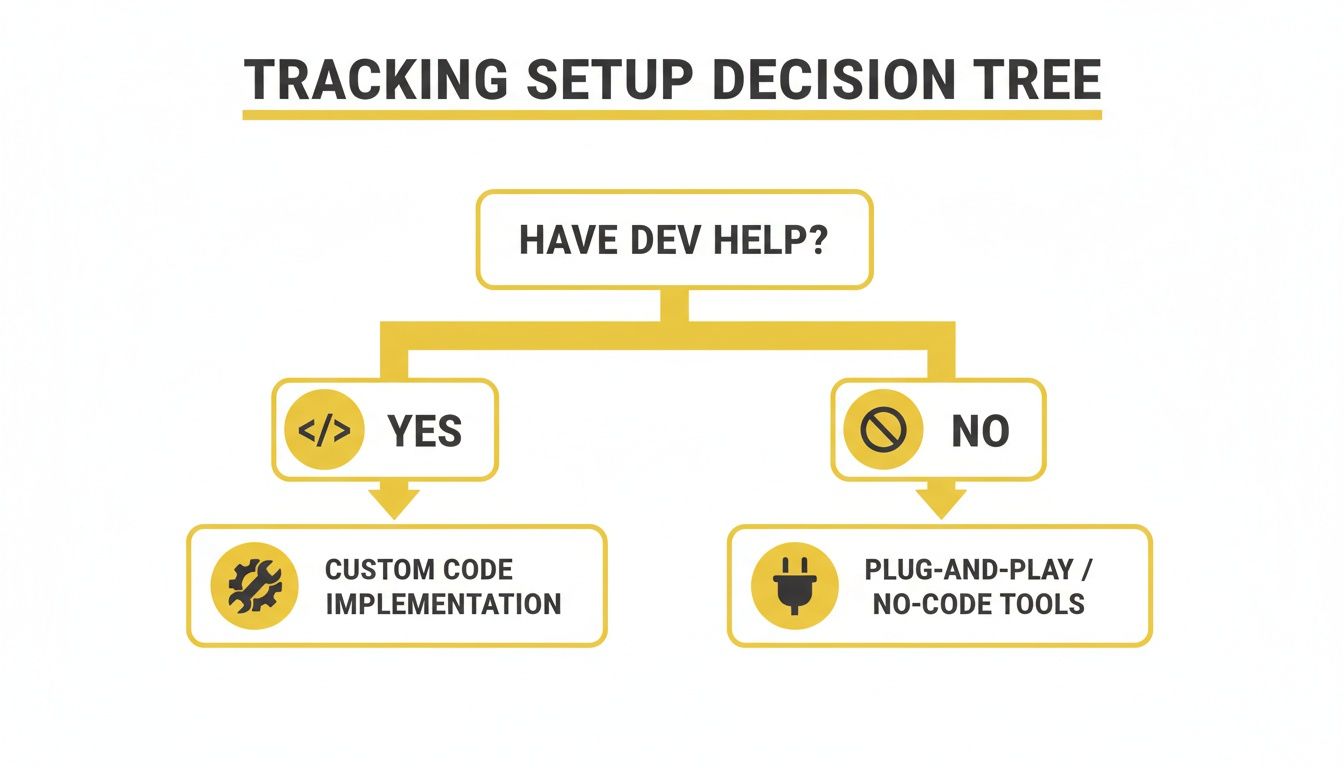
As you can see, the path you take—whether you bring in a developer or use tag management tools—really comes down to your team's technical skills and what your business needs most.
The difference between a 2% and a 4% conversion rate doesn't just double your results; it can be the difference between a failing campaign and a wildly profitable one. Accurate data is what allows you to find and exploit that difference.
Ultimately, a flawless setup is all about giving Google's AI the right signals. The algorithm needs to know exactly what a valuable customer looks like for your business, whether that’s a completed purchase, a booked demo, or a qualified lead form submission. To really dig into the competitive edge this gives you, you need to Master your Google Ads conversion tracking. This foundation is what empowers the algorithm to go out and find more of those ideal customers, cutting down waste and letting you scale efficiently.
Alright, let's move past the theory and get our hands dirty building the tracking infrastructure. While you could just slap code snippets directly onto your site, the professional standard—and the method that will save you countless headaches—is to use Google Tag Manager (GTM).
Think of GTM as a central command center for all your tracking tags. It gives you an incredible amount of flexibility without having to ping a developer every time you need a small change. This is how you set up a rock-solid Google Ads conversion tracking setup.
Building Your Foundation with Google Tag Manager
First things first, you can't track what you haven't defined. This process always starts inside your Google Ads account, where you'll create a conversion action. This is just the specific goal you want to measure—a sale, a form fill, a phone call, you name it.
In your Google Ads account, head over to Goals > Conversions > Summary, and hit the big blue “+ New conversion action” button. For most businesses, you'll be choosing "Website" as the source.
After Google Ads scans your domain, you'll get the option to create the action manually. This is where you give your conversion a clear name (like "E-commerce Purchase" or "Contact Form Lead") and dial in its value and attribution settings.
Once you save it, Google gives you the two golden keys you need for GTM:
Conversion ID: Your unique account identifier.
Conversion Label: The specific ID for the action you just made.
Keep these on a separate tab or notepad. You'll need them in just a minute.
Deploying Your Core GTM Tags
With the goal defined in Google Ads, it's time to jump into your GTM container and implement the tags that make the magic happen. There are two non-negotiable tags you need for this to work correctly.
First up is the Conversion Linker tag. This one is absolutely essential, yet so many people forget it. It works quietly in the background, storing ad click information in first-party cookies on your domain. This is crucial for making sure conversions are attributed correctly, especially as browsers get tougher on third-party cookies.
Without it, you're flying blind and will lose a huge chunk of your conversion data. Setting it up is a breeze: create a new tag, pick "Conversion Linker," and set it to fire on "All Pages." That's it. No other configuration is needed.
Creating the Google Ads Conversion Tracking Tag
Next, the main event: the Google Ads Conversion Tracking tag. This is the tag that actually tells Google Ads, "Hey, someone just did the thing we wanted them to do!"
In GTM, create another new tag and choose the "Google Ads Conversion Tracking" template. This is where you'll paste the Conversion ID and Conversion Label you grabbed from your Google Ads account a moment ago. This is also where you can pass dynamic data, like the purchase value and currency—which is mission-critical for any e-commerce store trying to track ROAS.
Pro Tip: Don't just paste your Conversion ID into every tag. Instead, create a "Constant" variable in GTM for it. This way, if it ever changes, you only have to update it in one place instead of hunting it down across a dozen different tags.
The real power of this tag comes from its trigger. The trigger is the rule that tells GTM when to fire the tag. You have to be precise here, ensuring it only fires when a conversion actually happens.
Configuring Triggers for E-commerce and Lead Gen
How you set up your trigger depends entirely on what you're selling. Let's walk through the two most common scenarios.
E-commerce Example: Tracking Purchases For an online store, the most reliable signal of a conversion is the "thank you" or order confirmation page. A customer only sees this page after their payment has gone through.
Create a New Trigger: In GTM, choose the "Page View" trigger type.
Set the Condition: Configure it to fire on "Some Page Views."
Define the Rule: The rule should be something like "Page URL" contains a unique part of your confirmation page's path. Think or .
When you connect this trigger to your Google Ads Conversion Tracking tag, it will only send a conversion signal to Google Ads after a legitimate purchase.
Lead Generation Example: Tracking Form Submissions If you're a service-based business, a conversion is usually someone filling out a contact or quote request form. You could use a "thank you" page here too, but a much cleaner method is to use a dedicated form submission trigger.
Create a New Trigger: This time, pick the "Form Submission" trigger type.
Set the Condition: Configure it to fire on "Some Forms."
Define the Rule: Set the rule to fire when the "Form ID" equals the specific ID of your contact form. You can easily find this by right-clicking the form on your website and using your browser's "Inspect" tool.
This approach makes your Google Ads conversion tracking setup far more reliable and less likely to fire by mistake. By getting these foundational tags and triggers right in GTM, you're building a clean, accurate data pipeline that feeds Google's algorithm exactly what it needs to find you more of your best customers.
Future-Proofing Your Data With Enhanced Conversions
In an advertising world that's rapidly saying goodbye to third-party cookies, clinging to old tracking methods is a surefire way to get left behind. This is where Enhanced Conversions step in, acting as your best defense against the data gaps created by privacy-focused browsers like Safari and Firefox. It’s an essential part of any modern google ads conversion tracking setup.
At its core, this technology lets you send securely hashed, first-party customer data—think email addresses or phone numbers—from your website straight to Google. When a user who’s logged into their Google account converts on your site, this hashed data helps match the conversion back to the ad click, even if the cookie that would normally do the job is blocked or long gone.
Why You Can't Afford to Skip This
Without Enhanced Conversions, you're willingly letting a big chunk of your conversions simply vanish into thin air. This blind spot starves Google's Smart Bidding algorithms of complete data, which directly leads to clumsy optimization and wasted ad spend. It's not just about staying compliant; it's about reclaiming attribution that would otherwise be completely lost.
The real beauty here is the privacy-first design. All the data is hashed on your end before it ever leaves your website. Personal information like gets turned into an unreadable string of characters like . Google then matches this scrambled string against its own hashed user data, protecting user privacy while successfully recovering attribution. Getting a handle on What Is First Party Data is the key to making robust tracking strategies like this work for you.
This diagram shows how your user's hashed data is securely matched up with Google's signed-in data.
This process is what bridges the attribution gap caused by cookie limitations, making sure your campaign data is as whole and accurate as possible.
Implementing Enhanced Conversions with GTM
By far, the most flexible way to get this running is through Google Tag Manager. The whole game is about capturing the user-provided data from your forms (like the email field on a checkout page or lead form) and passing it along with your standard conversion tag.
Here’s a practical breakdown of what needs to happen:
Enable Enhanced Conversions in Google Ads: First thing's first. You have to jump into your conversion action settings inside Google Ads and check the box to turn on Enhanced Conversions. You'll tell Google you plan to set it up via Google Tag Manager.
Create User-Provided Data Variables in GTM: Next, you need to create variables in GTM that can grab the data from your website's data layer or directly from the form fields. A classic example is creating a variable that captures the value of the email input field on your checkout page.
Configure Your Conversion Tag: Inside your main Google Ads Conversion Tracking tag, you'll spot a section for "Include user-provided data from your website." This is where you map the new variables you just created (like your Email variable) to the correct fields.
The key is making sure this data is captured reliably at the exact moment of the conversion event. For an e-commerce store, that means grabbing the email from the checkout form just as the purchase event fires. For a lead-gen site, it's about capturing it from the contact form right on submission.
In today's privacy-focused world, enhanced conversions aren't just a "nice-to-have"—they're survival gear. Without a server-side or enhanced setup via GTM, you could be losing 20-30% of your attribution accuracy. And considering that remarketing Display ads often deliver 2-3x higher conversion rates than prospecting campaigns, you can't afford faulty tags. This only works if your tags are firing perfectly on key events.
Consent Mode and Data Integrity
Finally, it's worth mentioning how all this plays with Google Consent Mode. When a user denies consent for ad cookies, standard tracking gets blocked. But if Consent Mode is properly configured, Google can still use modeling to fill in some of those data gaps. Enhanced Conversions works right alongside it, adding another powerful layer of data recovery to ensure you're feeding the algorithm the richest, most accurate signals possible for smarter bidding and better results.
Moving Past the Basics to Advanced Tracking
Getting a simple conversion tracking setup running is a great first step, but it's really just the beginning. If you stop there, you're leaving a ton of money on the table. To really connect your ad spend to what's happening in your bank account, you need to tailor your tracking to your business model. This is how you stop just counting conversions and start feeding Google the rich, specific data it needs to find your best customers.
For e-commerce, this boils down to one critical thing: dynamic value tracking. Instead of telling Google Ads that every purchase is worth the same flat average, you need to pass back the actual cart value for every single transaction. For any campaign running on Return on Ad Spend (ROAS), this isn't just a nice-to-have; it's a complete game-changer.
Think about it. One customer spends $30, and the next spends $300. Without dynamic values, Google’s algorithm sees both of those sales as identical wins. But when you feed it the real numbers, the algorithm learns what kinds of users are likely to make those bigger purchases, and it starts optimizing to find more of them. That's how you dramatically improve your ROAS over time.
Tying Offline Sales Back to Your Ads
If you're in the lead-gen space—maybe you're a consultant, a coach, or run a local service business—that initial form submission is just the start of the journey. A classic mistake is treating every form fill as the final goal. When you do that, you're just training Google to find people who are good at filling out forms, not people who actually become paying clients.
This is exactly why Offline Conversion Imports are so essential. This feature is pure gold. It lets you connect what happens later in your CRM directly back to the original ad click that started it all. You're essentially telling Google, "Hey, of the 100 leads you sent me, these 15 were qualified, and these 5 actually signed a contract."
By closing the loop between your online ads and offline revenue, you're no longer just tracking leads; you're tracking actual money. This allows Google's Smart Bidding to hunt for the kinds of clicks that turn into real sales, not just tire-kickers.
The whole system hinges on capturing a unique identifier called the Google Click ID (GCLID). Every time someone clicks your ad, Google tags them with this ID. It’s like a digital breadcrumb you can follow.
The manual process looks like this:
Grab the GCLID: When a user lands on your site from an ad, you need to pull the parameter from the URL.
Store the GCLID: You'll want to save this ID in a hidden field on your lead form so it gets passed into your CRM along with the lead's contact info.
Upload Your Conversions: Once a lead becomes a customer, you create a simple spreadsheet with the GCLID, conversion name, date, and value, and upload it right back into Google Ads.
While setting this up can get a bit technical, it's incredibly powerful. Match rates can get close to 100% because you're using Google's own unique ID to connect the dots. It’s far more reliable than other methods like Enhanced Conversions for Leads, where I've seen match rates as low as 40-50% due to email mismatches and other data issues.
Don't Forget About Phone Calls
Never, ever underestimate the power of a phone call. For so many businesses, especially in local services, a call is the most valuable lead you can possibly get. A solid google ads conversion tracking setup has to account for these conversations.
There are really two ways these calls come in.
Calls Directly from Ads This is the most straightforward method. You can use call extensions or even call-only ads that feature a Google Forwarding Number. When someone clicks to call right from the search results page, Google routes it through their system and automatically logs a conversion in your account. Simple.
Calls from Your Website But what about the people who click your ad, spend some time on your site, and then decide to pick up the phone? You absolutely need to track those, too. This is done with a small bit of code on your site that dynamically replaces your normal business number with a Google Forwarding Number for any visitor who came from a Google Ad. When they dial that number, the conversion gets tied back to the right campaign and keyword.
Choosing Your Primary Conversion Goal
The conversion action you optimize for dramatically impacts campaign performance. This table breaks down which goals to prioritize for different business models.
Business Model | Weak Conversion Goal (Avoid) | Strong Conversion Goal (Prioritize) | Why It Matters |
|---|---|---|---|
E-Commerce | All Purchases (equal value) | Purchases (with dynamic value) | Optimizes for high-value customers and maximizes ROAS. |
SaaS | Free Trial Sign-ups | Paid Subscriptions | Focuses ad spend on users who are willing to pay, not just try. |
Lead Generation | All Form Fills | Offline Import: Qualified Leads | Trains the algorithm to find leads more likely to close. |
Local Services | Clicks to the "Contact Us" page | Phone Calls, Form Fills | Prioritizes direct, high-intent contact over passive website exploration. |
By moving to these advanced tracking scenarios, you’re giving Google the exact signals it craves—real revenue, qualified leads, and high-intent calls—to find you more of the customers you actually want.
Verifying Your Setup And Troubleshooting Common Issues
You've done the hard work of setting up your Google Ads conversion tracking. Now comes the most important part: making sure it actually works. Launching campaigns with unverified tracking is like setting sail in a leaky boat—you’re just setting yourself up for failure. Before you put another dollar into ad spend, you need total confidence that your tags are firing correctly and your data is clean.
This isn't just about ticking a box. Data quality is everything in modern advertising. A bad setup poisons Google's AI, causing it to chase ghosts and send your CPAs through the roof. When you consider that the average search conversion rate hovers between 3-6%, you can't afford to misread your results. For a deeper dive into current benchmarks, check out these key Google Ads statistics. Proper verification ensures you're making decisions based on reality, not a prayer.
Using Google Tag Assistant to Debug in Real Time
Your best friend for this task is Google's own Tag Assistant. It lets you connect directly to your website in a live debug mode, so you can see exactly which tags fire, what data they’re grabbing, and where things might be breaking down.
Here’s a quick rundown on how to use it:
Head over to tagassistant.google.com and pop in your website’s URL to kick off a debug session.
Your site will open in a new tab, linked to the Tag Assistant debug panel.
Now, act like a customer. Go through the exact steps someone would take to convert, whether that’s filling out a form or making a purchase.
Jump back to the Tag Assistant tab and look at the event summary. You should see your "Google Ads Conversion Tracking" tag appear under the "Tags Fired" section right after the conversion action.
It’s a real-time feed of what’s happening behind the scenes.
When you see this, you know the tag fired successfully on that conversion event. It's the confirmation you need to know the setup is working as intended.
Understanding Conversion Action Status in Google Ads
Inside your Google Ads account, every conversion action has a status. Seeing something other than "Recording" can be a little jarring, but each status just tells you a different piece of the story.
Unverified: This just means Google hasn't seen your tag fire yet. It can take a few hours for this to update after you first set it up. If it sticks around, it means no one has actually triggered that conversion yet.
No recent conversions: This tells you the tag has worked before, but it hasn't tracked anything in the last seven days. If you have low conversion volume, this is probably fine. If not, it could be a sign something broke.
Recording conversions: This is what you want to see. It means your tag is active and has tracked at least one conversion within the last seven days.
Don’t panic if you see "Unverified" right after you finish the setup. The quickest way to get it to "Recording" is to trigger a test conversion yourself. Just click one of your own active ads to start the session, then complete the conversion. (Just remember to exclude your IP address later so you don't mess with your data!)
A Practical Troubleshooting Checklist
If your tags aren't firing or the data looks off, don't worry. Most of the time, the fix is simple. Run through this checklist—I’d bet your issue is on this list.
Common Problem Areas:
Incorrect Conversion ID or Label: This is the number one culprit. A simple typo—copying and pasting one wrong character—can break everything. Double-check that the ID and Label in your GTM tag are an exact match to what's in your Google Ads account.
Trigger Conditions Are Too Strict (or Too Loose): Maybe your trigger is looking for a URL with instead of , or the form ID is slightly off. Use Tag Assistant's debug view to see the exact variables available when a conversion happens, then adjust your trigger to match reality.
Missing Conversion Linker Tag: This one is surprisingly easy to forget. Without the Conversion Linker tag firing on all pages, Google can't correctly attribute conversions back to the ad click. Make sure it's there.
Code Conflicts on Your Website: Every now and then, other scripts on your site can interfere with Google Tag Manager. A quick way to check is to open your browser’s developer console (usually F12) on the conversion page and look for any red JavaScript errors.
Data Layer Issues: If you’re passing dynamic values like revenue or transaction IDs, you have to make sure the data layer is populated with that information before your conversion tag fires. Timing is everything.
By methodically checking your setup with these tools and keeping an eye out for these common slip-ups, you can build a rock-solid tracking foundation. That confidence is what allows you to scale campaigns, knowing the data you're relying on is accurate and trustworthy.
Frequently Asked Questions
Getting your Google Ads conversion tracking set up properly is a huge step, but it often brings up a few tricky questions. Even when you think you’ve got it all buttoned up, some scenarios and settings can feel a bit murky.
Let's clear up some of the most common sticking points that advertisers run into.
Can I Track Conversions Without a Thank You Page?
Yes, absolutely. The classic "thank you" page-load conversion is still a reliable method, but it’s far from your only option these days. Modern tracking, especially when you’re using Google Tag Manager, is built around events, not just page views.
This approach is way more flexible and, frankly, often more accurate. You can set up triggers to fire a conversion tag based on specific user actions right on the page.
Button Clicks: A tag can fire the exact moment someone clicks the "Submit" button on your form.
Element Visibility: You could track a conversion when a specific success message pops up on the screen after a user takes action.
Custom Events: For more complex setups, your developer can push a custom event to the data layer when a key action happens, giving GTM a perfect trigger to work with.
This event-based tracking is a lifesaver for single-page applications or any website where submitting a form doesn't automatically send the user to a brand-new URL.
How Long Until Conversions Show in Google Ads?
Here’s where a little patience comes in. In my experience, you'll usually see new conversions pop up in your Google Ads reports within a few hours. That said, Google's official line is that it can sometimes take up to 24 hours for all the data to get processed and show up correctly.
When you first create a conversion action, don't panic if you see "Unverified" or "No recent conversions." That’s totally normal. The status will only switch over to "Recording conversions" after the very first real conversion comes through from someone who clicked one of your ads. Once that first one logs, you'll see data start to flow in more consistently.
What Is the Difference Between Primary and Secondary Conversions?
Getting this right is absolutely critical if you want Google's Smart Bidding to work for you, not against you. This setting is how you tell the algorithm what really matters to your business.
Primary conversions are your main goals—the actions that directly make you money. Think of things like:
Completed e-commerce purchases
Qualified lead form submissions
Booked appointments or demos
These are the conversions that get counted in the main "Conversions" column of your reports. More importantly, they're the only signals that automated bidding strategies use to optimize your campaigns.
Secondary conversions, on the other hand, are valuable user actions you want to keep an eye on but not actively have Google optimize for. These are often micro-conversions or supporting actions that show engagement, like newsletter sign-ups, PDF downloads, or someone adding an item to their cart.
These secondary actions are tracked in the "All conversions" column. They give you awesome contextual data about what people are doing on your site without muddying the waters for your bidding strategy. Setting this correctly ensures Google Ads puts all its firepower behind driving the outcomes that actually generate revenue.
Understanding these details helps you fine-tune your setup, making sure the data flowing into your account is not just accurate, but strategically aligned with your biggest business goals.
At Wojo Media, we specialize in building the kind of rigorous, full-funnel tracking that transforms ad spend from a guess into a predictable growth engine. If you're ready to move past basic setups and unlock profitable scale, book a free demo call with us today.
Comments